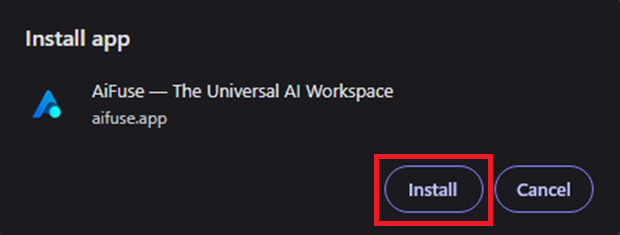

Install app
Install AiFuse and use it like any other app on your phone, tablet or computer. It gets its own icon, opens in its own window, and you're one tap away instead of hunting for a browser tab. It's the same AiFuse either way — your account, your chats, your credit are all there, on every device you sign in on. No app store, no download, nothing to update.
01Phone
Phone
Android
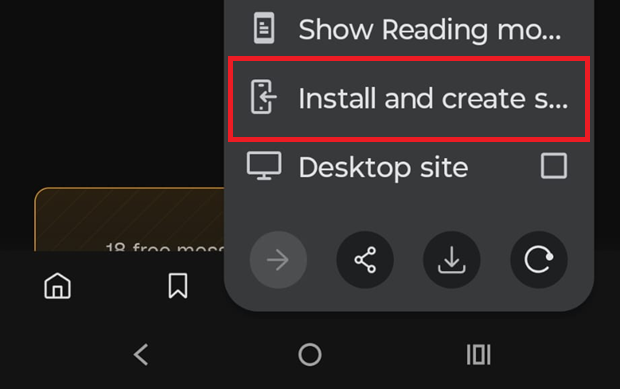
Some browsers label the menu entry “Install and create shortcut”, and some offer installing as a banner at the bottom of the screen instead. Either works.
- Open aifuse.app in Chrome, Edge or another Chromium browser.
- Tap the ⋮ menu button.

- Tap Install app.
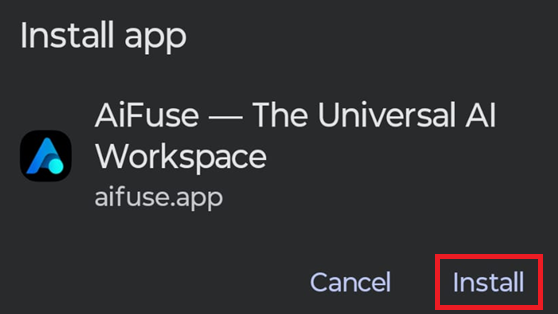
- Tap Install to confirm.
iPhone
Must be Safari — Chrome and Firefox on iPhone cannot install web apps.
- Open aifuse.app in Safari.
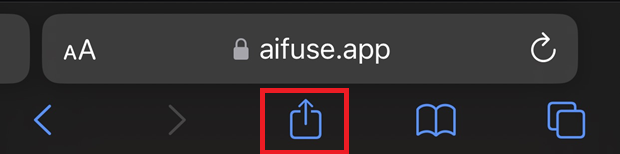
- Tap the Share button in the bottom toolbar.
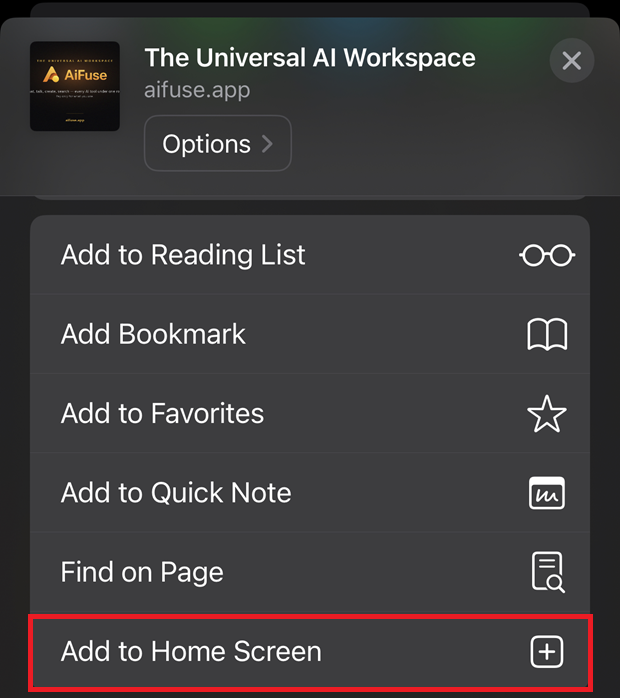
- Scroll down and tap Add to Home Screen.
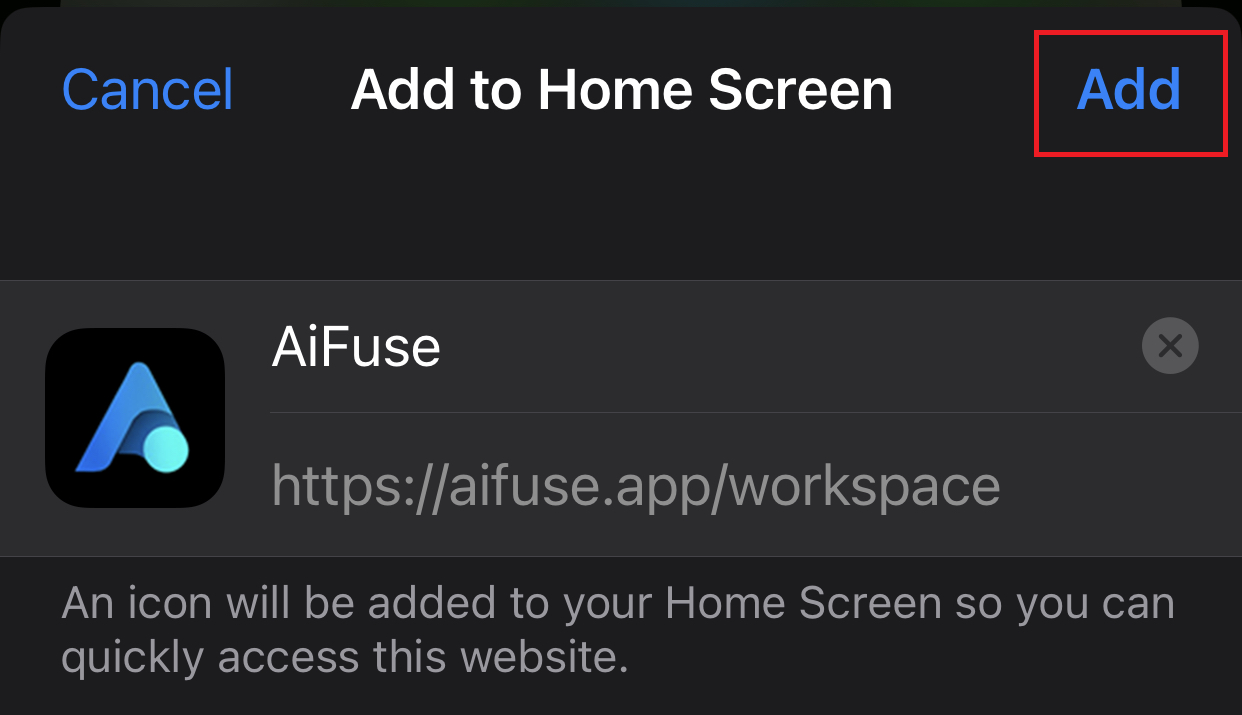
- Tap Add.
02Tablet
Tablet
Android tablet
- Open aifuse.app in Chrome, Edge or another Chromium browser.
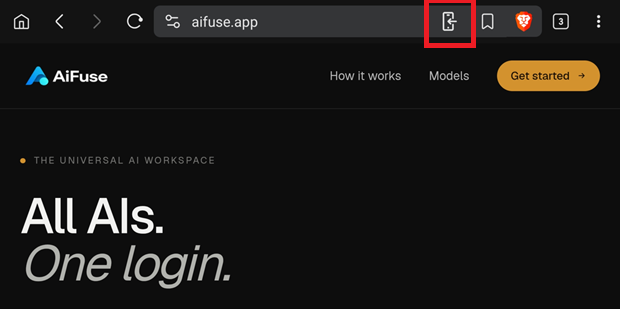
- Tap the install icon at the right-hand end of the address bar.
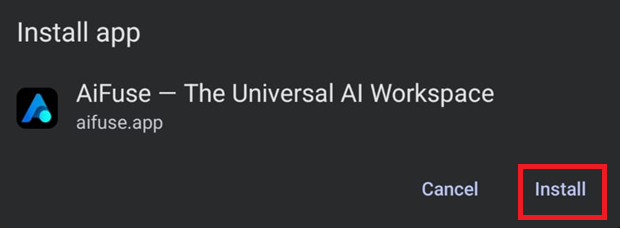
- Tap Install to confirm.
iPad
Must be Safari — Chrome and Firefox on iPad cannot install web apps.
- Open aifuse.app in Safari.
- Tap the Share button — the square with an arrow pointing out of it — in the toolbar.
- Scroll down and tap Add to Home Screen.
- Tap Add.
03Desktop
Desktop
Windows
AiFuse opens in its own window and appears in your Start menu. You can pin it to the taskbar from there.
- Open aifuse.app in Chrome, Edge or another Chromium browser.
- Click the install icon at the right-hand end of the address bar.
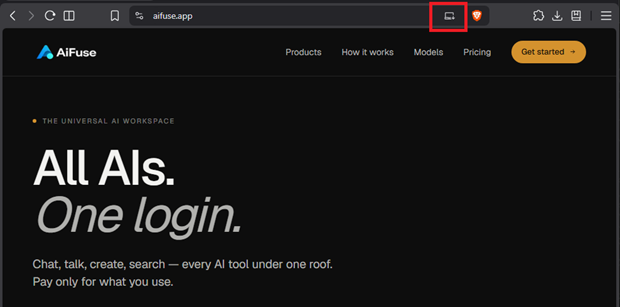
- Click Install to confirm.