

The Workspace,
piece by piece.
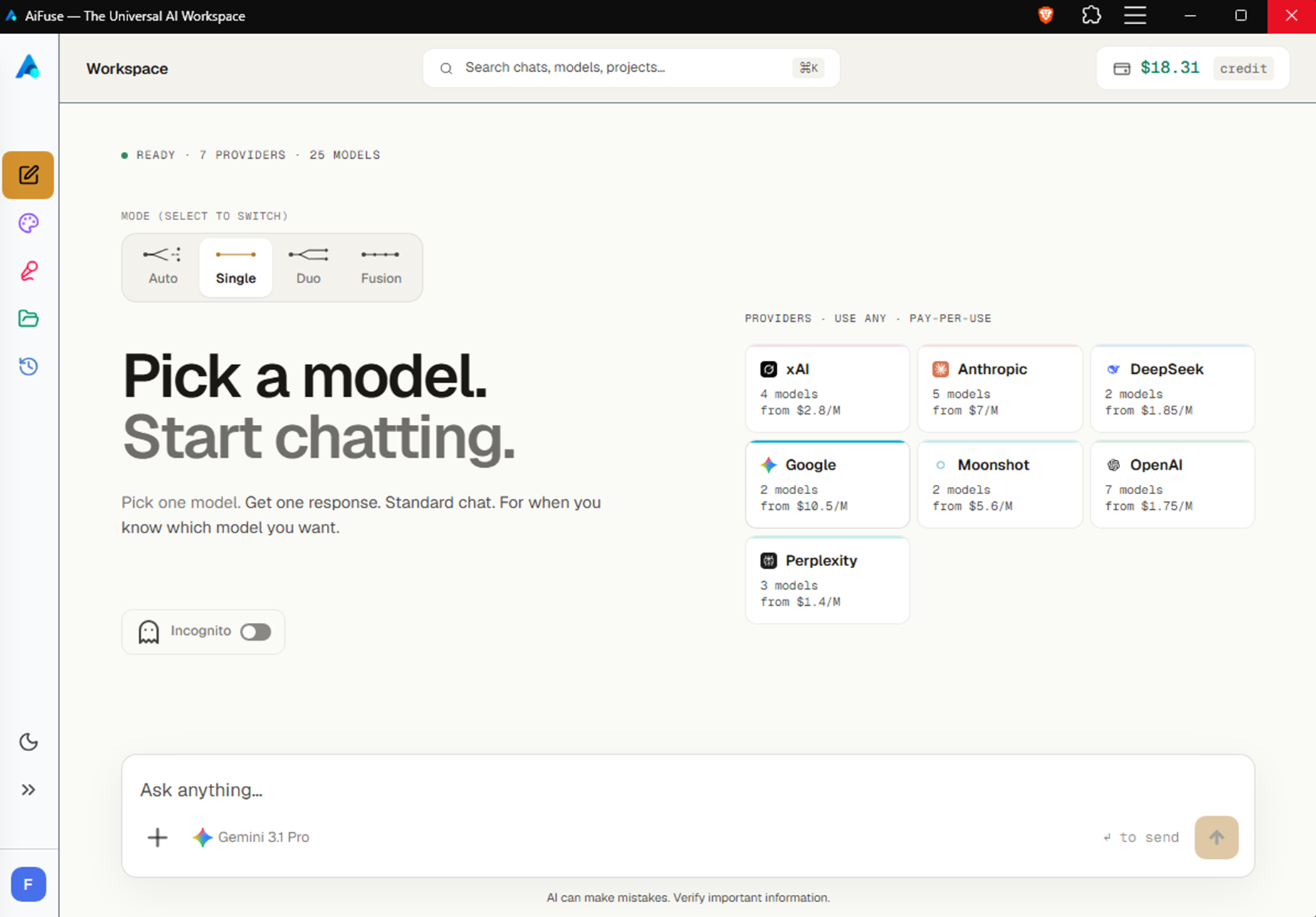
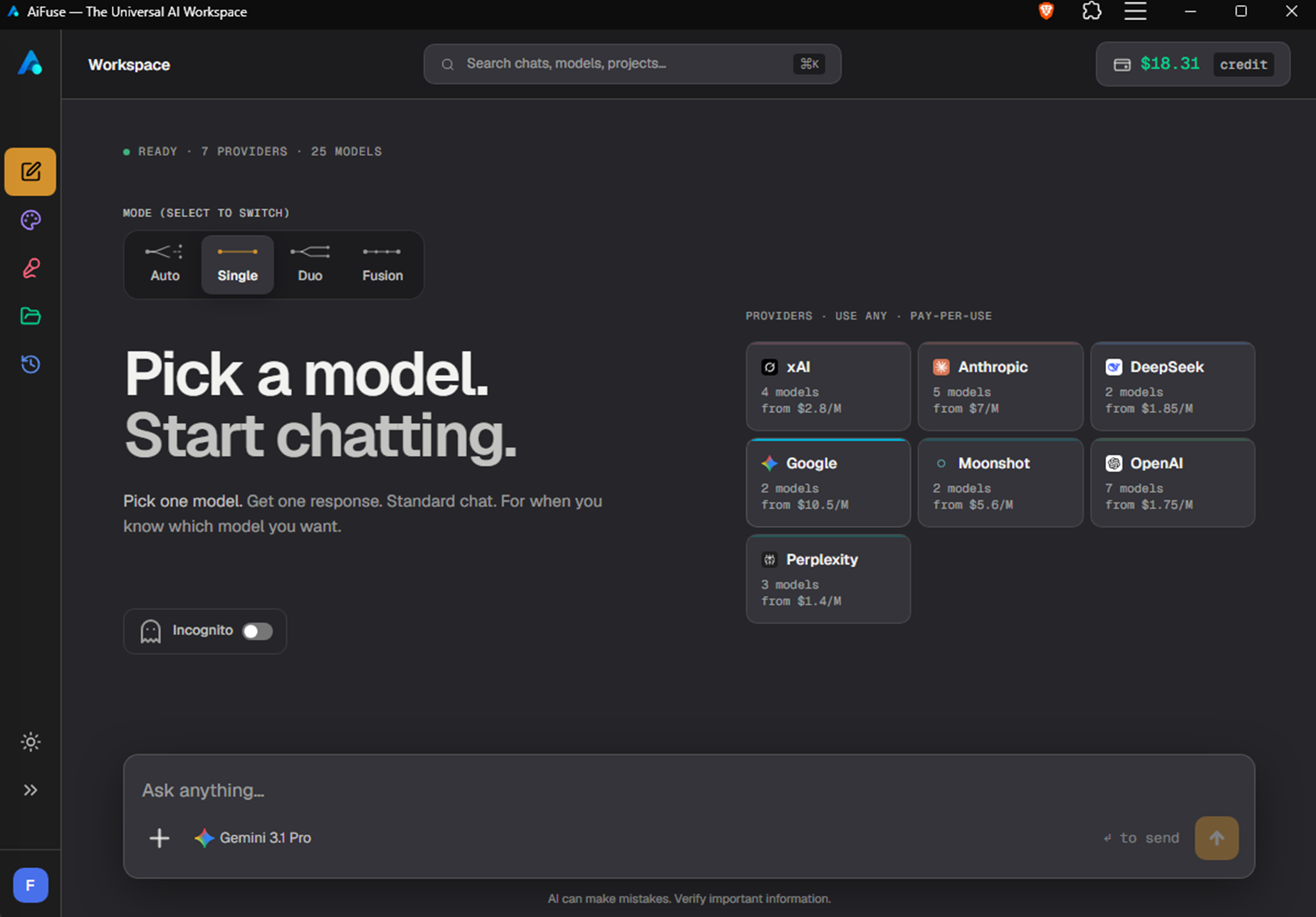
Below is the Workspace as it actually appears, with each part numbered. Tap any number to jump to its dedicated section — sidebar, mode picker, private mode, composer, credit pill.
Sidebar.
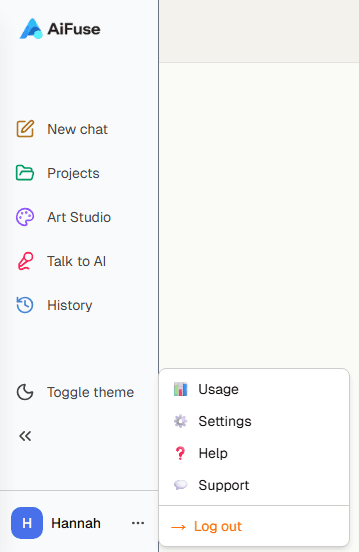
The sidebar is the entry point to everything in AiFuse:
- ChatReturns you to the conversation you were last in, in the mode you left it. Starts a fresh one only when there is nothing to return to; New chat is in the composer's + menu.
- Art StudioImage and video generation.
- Talk to AIRealtime voice agents.
- ProjectsLong-lived workspaces. Threads, files, and saved prompts grouped by what you're working on.
- HistoryEvery chat you've had, searchable. Click the pen icon to rename a chat; double-click the trash icon to delete it.
- Theme toggleSwitches between light and dark.
- CollapseClick the « to shrink the rail to icons.
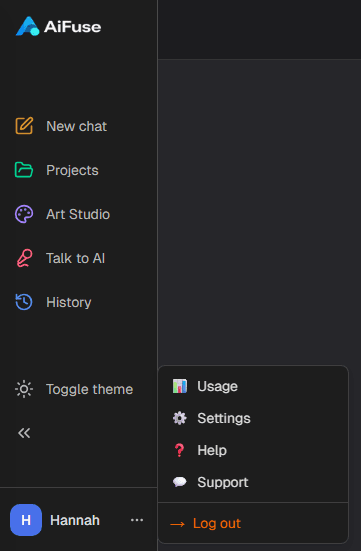
- User avatarClick to open a menu with Usage, Settings, Help, Support, Install app, and Log out.
Mode picker.
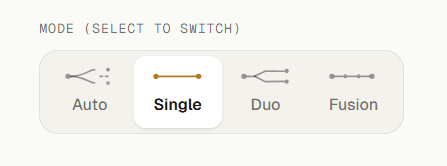
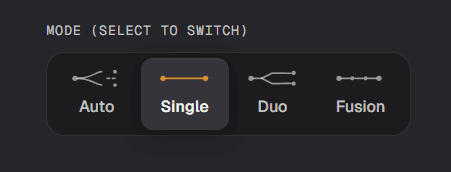
Pick a mode when you start a new chat. Four to choose from. The mode stays fixed for that conversation:
- AutoProvider and model is automatically selected based on what you ask. The default for new chats until you've used another mode.
- SingleSelect your desired provider and model — for when you know what you want.
- DuoTwo providers, one prompt. Answers stream side by side so you can compare quality and price. Pick the one to carry forward as context for the next turn.
- FusionPick two providers and models. The first acts as Orchestrator, the second as Consultant. The Orchestrator uses input from the Consultant to deliver a more refined answer.
Incognito.
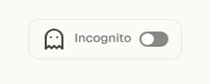
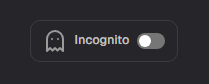
Incognito sends your message alone. Choose it before the first message and the conversation stays out of your history.
- What's sentThe message you just typed, and nothing else: no conversation history, no memory, no reply preferences, no project context. The server enforces this, not the browser — it discards whatever else a request carries.
- What's keptNothing reaches History, and the conversation is gone on reload or when you start a new chat. The usage record is still written: the turn is billed like any other.
- Choosing itOnce, on the empty screen, before the first message. It is fixed for the rest of that conversation, and a chip in the composer shows it is on.
- What it does not coverThe provider still receives your message. Attachments still travel with the turn, and web search still runs if you have it switched on in Settings.
Composer.
The composer sits at the bottom of every chat. Type your message and send with the gold button, or ⏎. Everything else a turn needs is in the strip beneath the text field.
- ⏎ to sendOr click the gold button. Shift+⏎ for a newline.
- + menu
Three items, four in Auto:
- New chat — starts a fresh conversation in the mode you are in.
- Attach files — PDFs, images, Word, Excel, code and transcripts; support varies by model. You can also drop files straight onto the composer.
- Prompt Builder — a 5-step modal: area, role, task, style, preview.
- Model pillsOne pill per model the turn will use — one in Single, two in Duo, two in Fusion. Click one to open the picker. In Auto the strip shows a label instead: the router picks for you.
- Picking a modelThe picker browses two ways. By provider groups models under their provider; by task groups them by what they're good at — Chat & Reasoning, Coding, Fast & Affordable, Voice, Search. Image and video models are excluded here; those live in Art Studio. Every slot has its own picker: both in Duo, both in Fusion.
- ContextHow much prior conversation goes with each message, set from Conversation settings in the + menu. Economy, Balanced, Quality, None — Balanced is the default. Each level is a token budget with a message ceiling, so a long conversation may send fewer messages than the ceiling suggests. It applies to the whole conversation, in every mode.
- TierAuto only, in the + menu under Conversation settings. Lite routes within the cheapest 30% of models, Balanced within the cheapest 70% — which keeps premium flagships out — and Pro allows the whole pool.


One wallet. Pay per request.
Your wallet sits in the top-right of every page. Each request deducts directly from it.
Top up via Stripe Checkout. Your balance appears in the top-right pill on every page.
Every model displays its own price in the picker, so you can choose what fits your task.
The cost deducts from your wallet the moment the response completes. No subscription.